Monday, September 25, 2006

Internet Explorer Turns FTP Browser

FTP is a legacy file transfer protocol that has been widely used since the day of networked computing.

Other than using the serious typing of command line FTP client, such as the standard FTP client offers by all Windows system, Internet Explorer able to serve as GUI FTP browser too!

Follow these simple steps to turn IE into a graphical FTP client:

  1. Click the Tools menu from Internet Explorer,
  2. Click on Internet Options,
  3. Click the Advanced tab,
  4. Check the check box labeled as "Enable Folder View For FTP Sites",
  5. Check the check box labeled as "Use Passive FTP". Set this option only if the PC is behind a firewall.
  6. Click OK button to complete the setting.
  7. Now, IE is ready to serve as graphical FTP browser. For example, type ftp://keith@188.8.1.10 in the IE address bar and press ENTER to instruct IE connect to FTP server 188.8.1.10 using FTP user account keith. Enter the password when prompt.
  8. Click OK and wait. After successful authentication, an interface similar to Windows Explorer shown. Copy files or folders as usual!
Related information:
  • Search more related info with Google Search engine built-in

Wednesday, September 13, 2006

Find And Remove Duplicate File

When the hard disk space going larger and larger, more files are storing into it. Over the time, there might be a lot of duplicate files scatter around the file system.

As bulk of these redundant files are here and there, redundant files mess up file system, decrease system performance, wasting valuable disk spaces, and ineffective file backup. It takes time and could be a really tedious job to find and delete these redundant files when low disk space alarmed!

MD5 checksum could be a good candidate to find duplicate and redundant files! It could be used to precisely identify which files have updated since last backup done by comparing the MD5 checksum of files between source and target of the backup.

MD5 short for Message-Digest algorithm 5, is a widely-used cryptographic hash function with a 128-bit hash value. MD5 has been employed in a wide variety of security applications used to check the integrity of data stream, TCP/IP packets, files, etc.
Related information:

  • MD5Sums is a tiny Windows command line freeware that able to automatically generate MD5 checksum for all files in a directory except sub directories. Technically, a Windows shell scripts such as VBScripts could be written to programmatic find duplicate files that reside in the file system by calling this tiny freeware via Run method of WshShell object.
  • MD5 unofficial homepage to find implementations in various programming languages.
  • MD5 shell scripts to find unique and redundant files in given directory
  • Search more related info with Google Search engine built-in

Sunday, September 10, 2006

Zero Fill Sure Delete Sensitive Data

Simply delete a file or format a hard disk by conventional way doesn't securely protect sensitive data stored inside the hard disk!

There are chances that other people able to recover or undelete the sensitive data by using simple undelete utilities such as Restoration.

However, there are utilities too that able to anti-undelete data deleted from hard disk! Anti-undelete utilities such as SDelete and Sure Delete will overwrite the sensitive data at least one time (or more than one times for more security in mind) with arbitrary bits or zero bits as Zero Fill does!

SDelete is a command line utility which is easy to use yet secure than Windows built-in del DOS command or Windows native delete function! To make it easy to use,

  1. Click on Start button,
  2. Click on Run menu,
  3. Type cmd in the Open field and click OK to call up Command Prompt window,
  4. Type echo %PATH% at the command prompt and press ENTER to output a list of default program paths separated with semi-colon.
    The default program path is used by Windows Run menu and Command Prompt to automatically locate a file or program. For example, the Run menu automatically locate cmd.exe and execute it, after typing cmd followed by pressing ENTER in previous step shown. If the cmd.exe is not reside in default program path, the Run menu will not able locate and execute it automatically.
  5. Put the Sdelete.exe to the any one of the folder path listed in echo %PATH% output, preferable is to use the system folder (e.g. C:\Windows\System32 in a default Windows XP setup),
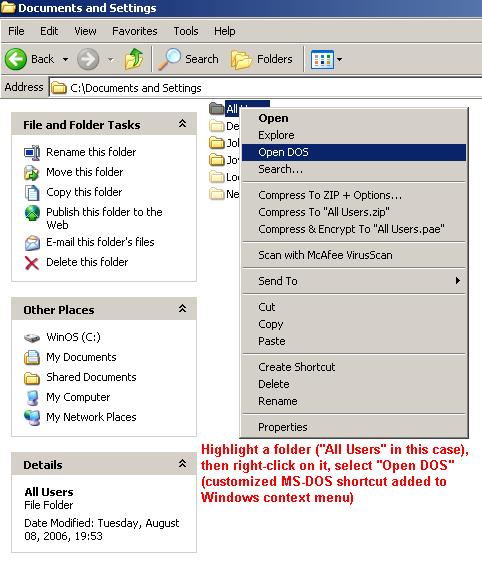
  6. Add a MS-DOS Command Prompt shortcut with customized option switch to Context Menu (if the shortcut is not there).

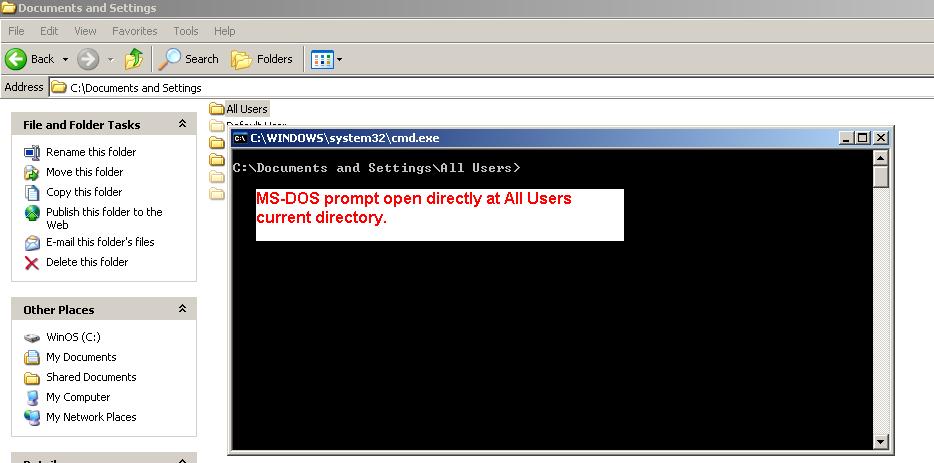
    After this step, using command line utilities will becomes easier. Just right-click on any folder and click on the MS-DOS Command Prompt shortcut added to Context Menu, the MS-DOS Command Prompt will opens and automatically pointing to the complete folder path of which the folder being right-clicked. Now what? Just type sdelete SensitiveFile.dat to delete a file called SensitiveFile.dat resides in that particular folder - hassle free!
Related information:
  • SDelete command line utility used to delete sensitive data securely
  • Sure Delete Window GUI utility used to delete sensitive data securely
  • Create File is one of Windows 2000 Resource kit (creatfil.exe) used to generate empty file of arbitrary size up to 4GB (when running on Windows XP). Use it to create as many empty file as possible to fill up all the empty space reported by Windows will able to wipe off deleted file data that reside at these free disk space.
  • WipeFree command line utility used to generate dump file to fill up free disk space where the deleted file reside. It is better than creatfil.exe as it doesn't limited to 4GB file size. Although, its speed is lower than creatfil.exe does.
  • What happen to a file when deleted from Windows
  • Undelete files from an emptied Recycled Bin with Restoration
  • Enable MS-DOS faster change path and auto-complete filename
  • Search more related info with Google Search engine built-in

Thursday, September 07, 2006

Undelete File From Emptied Recycle Bin

Undelete file utilities able to unerase deleted files even the deleted files no longer in the Recycle Bin!

Thanks to Brian Kato's effort in creating a tiny but great utility which he called it Restoration. It is absolutely free, standalone (no installation required, simply double-click and run), freeware (non-adware), tiny, and a must have software in a USB thumb drive. Depending on the free disk space left on hard disk, those deleted files might able be undeleted by Restoration!

So, don't panic next time if the files being deleted accidentally and emptied from Recycle Bin. SHIFT+DEL or even formatting hard disk also not a problem with Restoration to recover the deleted files!


However, do mind to worry on how to prevent highly sensitive and confidential files from recovery by others!

Friday, September 01, 2006

DOS Auto Complete Path And Filename

Enable MS-DOS faster change path and auto-complete filename are the main attractions to use Windows command line utilities!

The fastest and easiest way to change path in MS-DOS or open MS-DOS prompt at indicated path dynamically is by adding tweaked MS-DOS shortcut to Windows context menu. Coupled with MS-DOS's filename auto-completion, it is easier to use various Windows command line utilities such as compiling program source code with command line compilers of C, .Net, Java, etc.

Enlarge picture...
Enlarge picture...
MS-DOS of Windows XP featured with filename auto-completion. Just press TAB key and the MS-DOS will automatically lists the file's name in the current directory. If initial character(s) is typed then only follow by pressing TAB key, it will only lists out those file's name with matching initial characters. MS-DOS of Windows 2000 able to auto complete filename by pressing TAB key too. Although, this feature is not turned on by default!

Turn on Windows 2000 MS-DOS's filename auto-completion feature:

  1. Click the Windows's Start button,
  2. Click the Run menu,
  3. Type regedit.exe in the Open field to call up Windows Registry Editor,
  4. Go to HKEY_CURRENT_USER\Software\Microsoft\Command Processor
  5. Set the value of CompletionChar to 9.
  6. Done. Open MS-DOS, or better known as Command Prompt, to test the result. Now, the MS-DOS should automatically lists the filename each time pressing the TAB key. If initial character(s) is typed then only follow by pressing TAB key, the MS-DOS should automatically lists only file's name that matches with the initial character(s) given. Note, pressing SHIFT+TAB will tell the MS-DOS listing backward.
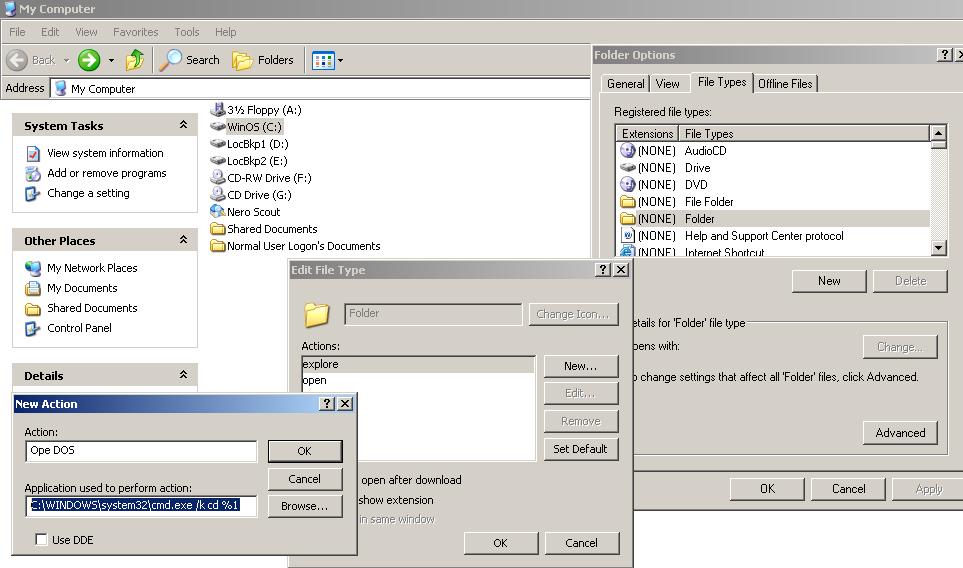
Add tweaked MS-DOS shortcut to Windows context menu:

Enlarge picture...
  1. Open My Computer or Windows Explorer,
  2. Click the Tools menu,
  3. Select Folder Options,
  4. Click on File Types tab,
  5. Search for "Folder" file type and highlight it,
  6. Click the Advanced button,
  7. Click the New button,
  8. Type a meaningful name, say Open DOS, in the Action field,
  9. Type C:\WINNT\system32\CMD.EXE /k cd %1 in the Application Used To Perform Action field below the Action field,
  10. Click OK button all the way to complete the procedures.
  11. To test the result, right click on any folder in local or network drives (not network folders which are not mapped as network drive). The Windows context menu should has new command shortcut named as Open Dos (the name given in previous step). Click on the Open DOS, the MS-DOS windows (titled as Command Prompt) opened up with the DOS current directory as the folder being right-clicked!