Sunday, September 17, 2006

Tweaking Windows Server LargeSystemCache

LargeSystemCache determines whether Windows 2000 Server should maintains a standard size or a large size file system cache, and influences how often the system writes changed pages back to hard disk.

Increasing the size of the file system cache generally improves server performance, but it reduces physical memory space available to applications and services. In addition, writing system data less frequently minimizes use of the kernel disk subsystem, but the changed pages occupy memory that might otherwise be used by applications.

LargeSystemCache is DWORD registry data type that could be located at registry path

HKLM\SYSTEM\CurrentControlSet\Control\Session Manager\Memory Management

Setting LargeSystemCache to 1 (system default)

Establishes a large system cache working set that can expand to physical memory, minus 4 MB, if needed. The system allows changed pages to remain in physical memory until the number of available pages drops to approximately 250. This setting is recommended for most computers running Windows 2000 Server as file server on large networks.

Setting LargeSystemCache to 0

Establishes a standard size file system cache of approximately 8 MB. The system allows changed pages to remain in physical memory until the number of available pages drops to approximately 1,000. This setting is recommended for servers running applications that do their own memory caching, such as Microsoft SQL Server, and for applications that perform best with ample memory, such as Internet Information Services web server.

Other than access to registry via regedit.exe and edit directly, alternative method to tweak LargeSystemCache is by

  1. accessing to the Server Optimization tab in Network And Dial-up Connections,
  2. right-click My Network Places,
  3. click Properties,
  4. right-click Local Area Connection,
  5. click Properties,
  6. click File And Printer Sharing For Microsoft Networks,
  7. and then click the Properties button,
  8. to set the LargeSystemCache to 0, select the Maximize Data Throughput For Network Applications option,
  9. to set the LargeSystemCache to 1, select Maximize Data Throughput For File Sharing.
The default setup of Windows 2000 Server initialize LargeSystemCache to 1 which is ideal when running as file server. However, setting LargeSystemCache to 1 can degrade service performance. As such, it is not appropriate when running as application servers such as Web server, SQL server, Exchange server. In this case, reset LargeSystemCache to 0 by selecting the Maximize Data Throughput For Network Applications option in Network And Dial-up Connections.
Thursday, September 14, 2006

DisablePagingExecutive Boost Windows Performance

Tweaking Windows core performance by editing registry key called DisablePagingExecutive only if

  1. plenty of memory installed, e.g. 1 GB RAM or more
  2. most of the memory being unused or idle on most of the time (wasting resource!), and
  3. Windows 2000 and above (Windows XP, Windows 2003) is running.
DisablePagingExecutive is a DWORD data type that could be located at registry path

HKLM\SYSTEM\CurrentControlSet\Control\Session Manager\Memory Management

The initial setup of Windows XP default DisablePagingExecutive value to zero. Setting this value to 1 to enable Windows core to fully utilize the huge memory installed. Tweaking this registry key benefits driver debugging too as all of the code and data are always memory resident. It also improves Windows system core performance by preventing high frequency of disk read in order to get code and data out from hard disk to memory for processing!

Related information:
  • Search more related info with Google Search engine built-in

Sunday, September 03, 2006

Auto Logon In Windows 2000

Default setup of Windows 2000 and above doesn't recommend auto logon feature. Obviously, it is due to security concerns.

Sometimes there might be just good enough to enable auto logon feature. For example, enable auto boot up and auto logon an information kiosk station that housed inside a securely locked stainless steel cabinet in public area.

Steps to enable auto logon in Windows 2000 and above

  1. Click on Windows Start button,

  2. Click on the Run menu,

  3. Type regedit.exe in Open field and click OK to call up Windows Registry Editor,

  4. Locate to HKey_Local_Machine\Software\Microsoft\Windows NT\CurrentVersion\Winlogon,

  5. Set DefaultUserName to an user account (either local or domain user account) that intended to automatically logon.

    Use this guide to create the keys (DefaultUserName, DefaultPassword, DefaultDomainName, AutoAdminLogon) if these keys are not exists,

    1. Right click on Winlogon,

    2. Select the New,

    3. Click on String Value,

    4. Enter the name of the key (DefaultUserName, DefaultPassword, DefaultDomainName, or AutoAdminLogon).

  6. Set DefaultPassword to the password of the user account defined in DefaultUserName,

  7. Set DefaultDomainName to a domain that able to authenticate the user account defined in DefaultUserName. If the local user account instead of domain user account is defined in DefaultUserName,

    • key in the computer name (Right click on My Computer, click Properties, click on Computer Name to look for Full Computer Name that define the computer name.), OR

    • leave it blank if the computer is not current joining to a domain.

  8. Set AutoAdminLogon to 1 to enable auto logon (0 to disable it).
To bypass auto logon (so that able to logon as another user account), hold down the SHIFT key during the boot up or logoff process!

Caution! the password is stored in registry as plain readable text!

Alternative option for Windows 2000 machine that is not joining a domain
  1. Go to Control Panel and double click Users And Passwords,

  2. Select the user account from the list (the account to which intended to automatically logon),

  3. Uncheck check box option Users Must Enter A User Name And Password To Use This Computer and click OK,

  4. Key in the password of the user account selected in previous step,

  5. Click the Advanced tab,

  6. Click to clear the Require Users To Press Ctrl-Alt-Del Before Logging On check box.

Saturday, September 02, 2006

Auto Logon In Windows XP

Default setup of Windows XP and above doesn't recommend auto logon feature. Obviously, it is due to security concerns.

Sometimes there might be just good enough to enable auto logon feature. For example, enable auto boot up and auto logon an interface workstation that housed inside securely protected data center.

Steps to enable auto logon in Windows XP and above

  1. Click on Windows Start button,

  2. Click on the Run menu,

  3. Type regedit.exe in Open field and click OK to call up Windows Registry Editor,

  4. Locate to HKey_Local_Machine\Software\Microsoft\Windows NT\CurrentVersion\Winlogon,

  5. Set DefaultUserName to an user account (either local or domain user account) that intended to automatically logon.

    Use this guide to create the keys (DefaultUserName, DefaultPassword, DefaultDomainName, AutoAdminLogon) if these keys are not exists,

    1. Right click on Winlogon,

    2. Select the New,

    3. Click on String Value,

    4. Enter the name of the key (DefaultUserName, DefaultPassword, DefaultDomainName, or AutoAdminLogon).

  6. Set DefaultPassword to the password of the user account defined in DefaultUserName,

  7. Set DefaultDomainName to a domain that able to authenticate the user account defined in DefaultUserName. If the local user account instead of domain user account is defined in DefaultUserName,

    • key in the computer name (Right click on My Computer, click Properties, click on Computer Name to look for Full Computer Name that define the computer name.), OR

    • leave it blank if the computer is not current joining to a domain.

  8. Set AutoAdminLogon to 1 to enable auto logon (0 to disable it).
To bypass auto logon (so that able to logon as another user account), hold down the SHIFT key during the boot up or logoff process!

Caution! the password is stored in registry as plain readable text!

Alternative option for Windows XP machine that is not joining a domain
  1. Click on the Windows Start button,

  2. Click on the Run menu,

  3. Type control userpasswords2 in the Open field and click OK,

  4. Select the user account from the list (the account to which intended to automatically logon),

  5. Uncheck check box option Users Must Enter A User Name And Password To Use This Computer and click OK,

  6. Key in the password of the user account selected in previous step,

  7. Click the Advanced tab,

  8. Click to clear the Require Users To Press Ctrl-Alt-Del Before Logging On check box.
Note, Windows XP Home edition don't allow auto logon with built-in Administrator user account!

Friday, September 01, 2006

DOS Auto Complete Path And Filename

Enable MS-DOS faster change path and auto-complete filename are the main attractions to use Windows command line utilities!

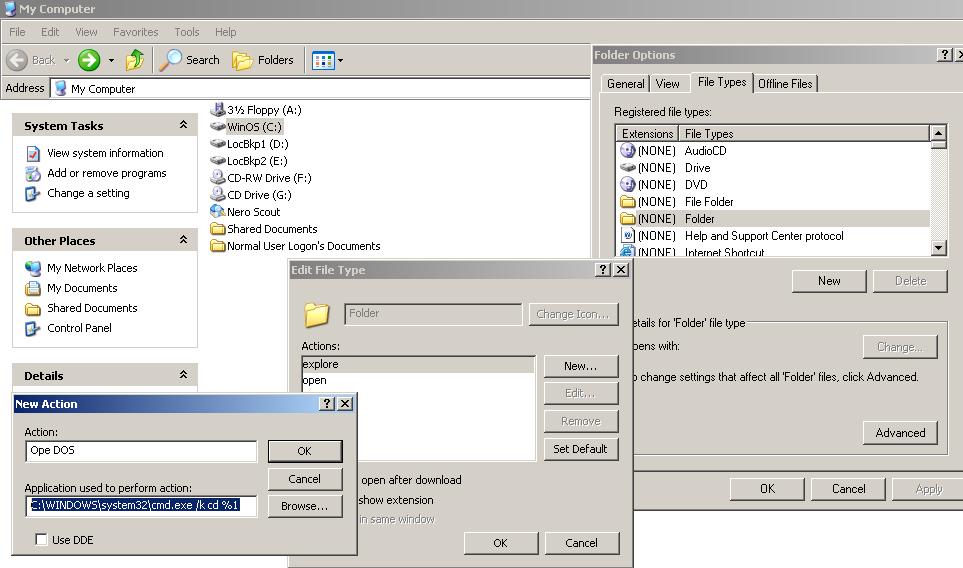
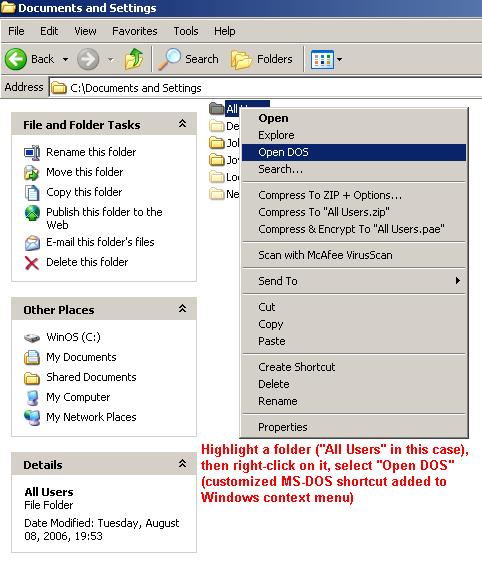
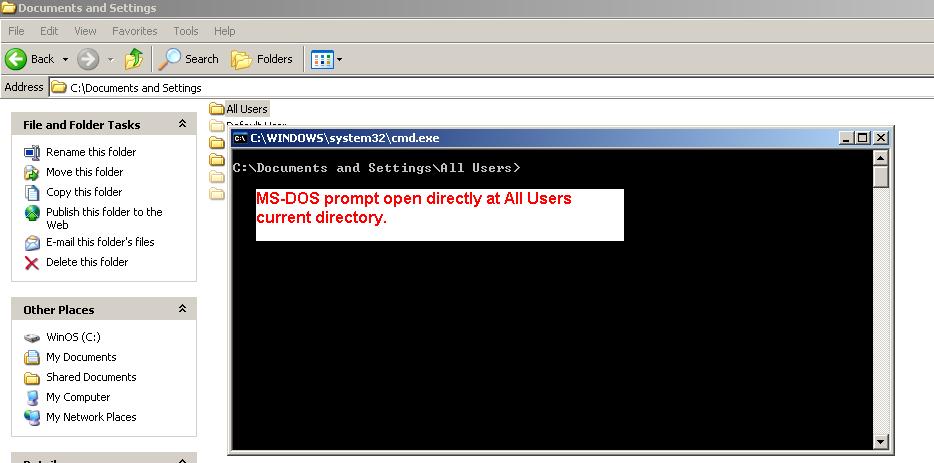
The fastest and easiest way to change path in MS-DOS or open MS-DOS prompt at indicated path dynamically is by adding tweaked MS-DOS shortcut to Windows context menu. Coupled with MS-DOS's filename auto-completion, it is easier to use various Windows command line utilities such as compiling program source code with command line compilers of C, .Net, Java, etc.

Enlarge picture...
Enlarge picture...
MS-DOS of Windows XP featured with filename auto-completion. Just press TAB key and the MS-DOS will automatically lists the file's name in the current directory. If initial character(s) is typed then only follow by pressing TAB key, it will only lists out those file's name with matching initial characters. MS-DOS of Windows 2000 able to auto complete filename by pressing TAB key too. Although, this feature is not turned on by default!

Turn on Windows 2000 MS-DOS's filename auto-completion feature:

  1. Click the Windows's Start button,
  2. Click the Run menu,
  3. Type regedit.exe in the Open field to call up Windows Registry Editor,
  4. Go to HKEY_CURRENT_USER\Software\Microsoft\Command Processor
  5. Set the value of CompletionChar to 9.
  6. Done. Open MS-DOS, or better known as Command Prompt, to test the result. Now, the MS-DOS should automatically lists the filename each time pressing the TAB key. If initial character(s) is typed then only follow by pressing TAB key, the MS-DOS should automatically lists only file's name that matches with the initial character(s) given. Note, pressing SHIFT+TAB will tell the MS-DOS listing backward.
Add tweaked MS-DOS shortcut to Windows context menu:

Enlarge picture...
  1. Open My Computer or Windows Explorer,
  2. Click the Tools menu,
  3. Select Folder Options,
  4. Click on File Types tab,
  5. Search for "Folder" file type and highlight it,
  6. Click the Advanced button,
  7. Click the New button,
  8. Type a meaningful name, say Open DOS, in the Action field,
  9. Type C:\WINNT\system32\CMD.EXE /k cd %1 in the Application Used To Perform Action field below the Action field,
  10. Click OK button all the way to complete the procedures.
  11. To test the result, right click on any folder in local or network drives (not network folders which are not mapped as network drive). The Windows context menu should has new command shortcut named as Open Dos (the name given in previous step). Click on the Open DOS, the MS-DOS windows (titled as Command Prompt) opened up with the DOS current directory as the folder being right-clicked!