Thursday, September 07, 2006

Undelete File From Emptied Recycle Bin

Undelete file utilities able to unerase deleted files even the deleted files no longer in the Recycle Bin!

Thanks to Brian Kato's effort in creating a tiny but great utility which he called it Restoration. It is absolutely free, standalone (no installation required, simply double-click and run), freeware (non-adware), tiny, and a must have software in a USB thumb drive. Depending on the free disk space left on hard disk, those deleted files might able be undeleted by Restoration!

So, don't panic next time if the files being deleted accidentally and emptied from Recycle Bin. SHIFT+DEL or even formatting hard disk also not a problem with Restoration to recover the deleted files!


However, do mind to worry on how to prevent highly sensitive and confidential files from recovery by others!

Tuesday, September 05, 2006

GNU GDB Core Dump Debugging

GNU gdb is a must have utility to Linux administrators and programmers! Most Linux package, including Redhat Linux, normally includes gdb as part of the standard distribution. Install the gdb package if it is not there.

GNU gdb is a powerful program debugger and core dump analysis tool. Linux administrators appreciated to have this great utility in tracking down Linux core dump and segmentation fault. Linux programmers rely on it to debug various programming bugs! GNU gdb supports diverse programming languages such as C, C++, Objective-C, Fortran, Java, Pascal, assembly, Modula-2, and Ada.

  • Analysis Linux segmentation fault or core dump file

    1. To analysis Linux core dump file /home/jason/core.18638 with GNU gdb debugger, run command
      gdb /usr/bin/w /home/jason/core.18638
    2. Binary file /usr/bin/w is simply chose. It is because the program which generated this core dump file being unknown in the first place.
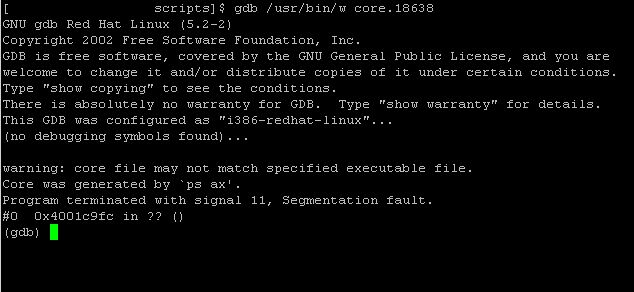
    3. The debugger warns that the specified executable file may not match the core dump file. It suggests that the core dump file was generated by "ps ax" command, where an invalid syntax used to run ps command. The gdb output also can't figure out which line of program code trigger the core dump creation, as shown in the last line, "#0 0x4001c9fc in ?? ()", of the screenshot below.

      GNU GDB used to analysis UNIX / Linux core dump file
    4. Rerun gdb again with correct binary by typing
      gdb /bin/ps core.18638
    5. Now, (as shown in screenshot below), gdb load the appropriate symbols to analysis the core dump file. The last line of gdb output, "#0 0x4001c9fc in stat2proc () from /lib/libproc.so.2.0.7", suggests that the core dump generated while executing the stat2proc function in /lib/libproc.so.2.0.7

      GNU GDB used to analysis UNIX / Linux core dump file
  • Debug an executable C program compiled with debugging information

    1. The C program must be compiled with debugging information that gdb could use. For example, type
      gcc -g -o HelloWorld HelloWorld.c
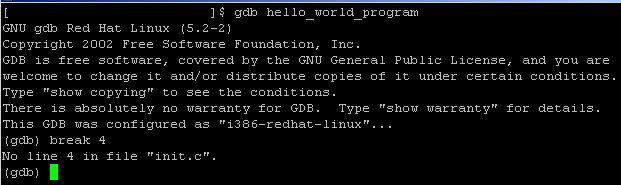
      to generate debugging information with -g option of gcc compiler. Gdb will fails to set appropriate breakpoint, as shown in next screenshot, if no debugging information found.

    2. GDB could not find the corrent break point in C program that is not compiled with debugging information (no -g option of gcc used)
    3. Run the command
      gdb HelloWorld
      to debug the program called HelloWorld
    4. Create a breakpoint to tell gdb where to stop the program execution in debugger. Gdb accept breakpoint at line number or function of the corresponding C program source code. For example:

      • break 679 would instruct gdb to stop at line 679
      • break ComputeMean would instruct gdb to stop right before the breakpoint at ComputeMean function

    5. Type run to execute the program inside gdb.

      The execution will stop right before the breakdown set in previous step or exit on failure. If it fails before the breakpoint, re-examine where suppose to state the break. Repeat the breakpoint step and rerun.

      If no failure found, line number of the corresponding source code where the execution stop will be printed in gdb output. Open the source in program editor, normally Vi editor, to locate that line number to re-code (for debugging) if necessary.

      Type
      run arg1 arg2 < inputfile > outputfile
      if needs to run the program with argument.
    6. Type list to list the whole program source code inside the gdb output.

    7. Using GNU GDB debugger to debug a C program compiled with debugging information.
    8. Type help to get more information on using the gdb command. For example, type help list to get more information on the list command.
    9. After the program execution stop at breakpoint, type

      • next or n to move on to next one line of the program source code.
      • step or s to step into a function and execute the function line by line. Command next will not step into function but execute the function as a whole. Type finish to exit from the middle of line execution inside the function.
      • Type until 967 to execute continuously until line 967 instead of line execution as with next command.
      • Type cont to continuously executing until the end, next breakpoint if more than one breakpoint set, or exit on failure
      • Press ENTER (means repeat the last executed command) after pressing next, n, step, or s command to make life easier.

    10. Type print variable to view the content of variable.
      Use the set variable = 32 command to set the new value 32 to variable.
    11. Use the ptype variable to print the variable type.
    12. Type delete 1 to remove the first breakpoint set.
    13. Type disable 1 to deactivate the first breakpoint instead of removing.
      Type enable 1 again to reactivate the first breakpoint.
Related information:

Monday, September 04, 2006

Windows Media Player Play All Files

Windows Media Player to play real media, quicktime, 3gp, mp3, avi, divx, in fact all known multimedia file formats! No more "codec not found to play this file" kind of problem with a super codec pack called Storm Codec!

Windows Media Player that is installed by default should able to play all digital media file formats of today digital world! It cannot play a digital media file simply because it does not find the codec, which is the real engine that decode that multimedia file format. Having say that, a player is just the graphical interface (frontend) of codec that present to user the equalizer, volume control, playing option, viewer windows, etc. It is the codec that really interpreting the multimedia file and not the graphical interface (the "player")!

So, why installing Real Media player, QuickTime player, Winamp, etc? Instead of installing too many multimedia players (the frontend), install only the different codecs will do the job! Disk space should not be a problem to install bulk of these multimedia players with today hard disk capacity. However, fewer such players installed means less messy and burden to Windows registry, lower the risk of DLL conflict, and a better system performance!

Storm Codec is the answer! It is a freeware, non-adware, stable super codec pack that allow Windows Media Player to play most (if not all) known multimedia formats (quicktime, real media, 3gp, mpeg1, mpeg2, mpeg3, mpeg4, wav, xvid, ogg, aac, etc)! The Storm Codec installer, however, install a GNU GPL player called Media Player Classic (MPC). You may bind all the digital media file formats with this player. Alternative, select "None" for not binding with MPC and manually binding digital media file formats to Windows Media Player.

If there is a digital media file format that cannot be played properly, use the bundled program called Gspot to investigate what codec is needed and revisit Storm Codec home page to check for upgrade availability.

Related information:
Sunday, September 03, 2006

Vi Editor Quick Reference

Read this brief introduction of Vi editor cheat sheet for better understanding on the guides follow:

  1. Always use vim (VI Improved editor) instead of vi, as some of the features outlined below are found only with vim.

    Another great feature of vim is that, it will always open the file at the line where the cursor stop right before existing from the last file access!

    If it has been a habit with vi command name, then make an alias and put it into the login scripts

    alias vi='vim'

    to retain the simplicity of the command name. For the same reason (of simplicity), the vi command name is used to refer vim, throughout this Vi command cheat sheet!

  2. Bold font used to denote Vi editor's command code.

  3. To execute Vi command code, press ESC to enter command mode.

  4. On start up, Vi editor is in neutral mode. Press ESC follow by i to start editing (insert) mode.

  5. Once complete typing the command code, Vi editor automatically shift to editing mode. Some command codes which initial with ":" (colon), there is a need to press ENTER key to end the command code.

  6. If it is not comfortable with the Vi editor color scheme, turn them off by typing:

    • :syntax off - turn off color scheme
    • :set nohlsearch - turn off search pattern highlighting

  7. If Vi editor color scheme is a must, but found that some of the color (especially the color of comment lines) is dim and not bright enough for easy reading, tweak the Vi editor by

    • :set bg=dark
               or
    • :set bg=light

    to find the best Vi editor background color for a better colored visual aid and comfortable reading.

  8. Press V to mark the whole line under the cursor, continuous as cursor move. Press v to start highlight as cursor move.

  9. To get "online" help on any of the Vi editor command codes, press :help command code in the editor.
Bulk delete or copy then paste a block of sentences within a file
  1. Move the cursor to the first line of the block of sentences and press mm
  2. Move the cursor to the last line of the block of sentences
  3. Press d'm to delete the block of sentences from current line where the cursor stop to the line where "m" marker initiated in step 1, OR
  4. Press y'm to copy the block of sentences from current line where the cursor stop to the line where "m" marker initiated in step 1, THEN
  5. Move the cursor to a position of file where it is intended to paste the copied block of sentences
  6. Press p to paste the copied block of sentences.
Bulk copy a block of sentences in file A and paste the copied sentences to file B
  1. Move the cursor to the first line of the block of sentences and press mm
  2. Move the cursor to the last line of the block of sentences
  3. Press "by'm to copy the block of sentences from current line where the cursor stop to the line where "m" marker initiated in step 1
  4. Press :e fileB to open another file called fileB for editing

    • Use command code :!e fileB instead of :e fileB if there is a need to continue editing fileA after exiting fileB.

  5. Move the cursor to a position of file where it is intended to paste the copied block of sentences
  6. Press "bp to paste the copied block of sentences from fileA to fileB.

Copy portion of text in a line then paste to elsewhere within a file
  1. Move the cursor to the first character of the intended portion of text to be copied and press mm
  2. Move the cursor to the last character of the intended portion of text to be copied
  3. Press y`m to copy the portion of text from the first character where "m" marker initiated in step 1 to the last character where current cursor stop.
  4. Move the cursor to the intended position of the file
  5. Press p to paste the copied portion of text.
  • To copy portion of text from file A and paste the copied text to file B, use command code "by`m instead of y`m
  • Read carefully that y'm function differently from y`m as shown. They are different syntax, indeed!

Moving around within the file
  1. Press G to move the cursor to the last line of file
  2. Press 1G or gg to move the cursor to the first line of file
  3. Press nG to move the cursor to the n-th line of file
  4. Press CTRL+b to move the cursor backward in 1 full screen
  5. Press CTRL+f to move the cursor forward in 1 full screen
  6. Press 0 (numeric zero) to move the cursor to the beginning of line
  7. Press $ to move the cursor to the end of line
  8. Press h to move the cursor to the left or press CTRL+h while in editing / inserting mode
  9. Press j to move the cursor down or press CTRL+j while in editing / inserting mode
  10. Press k to move the cursor up or press CTRL+k while in editing / inserting mode
  11. Press l to move the cursor up or press CTRL+l while in editing / inserting mode
  • Use the arrow key of the keyboard to move up, down, right, or left if it works in your terminal.

Check the current position or line number of the file edited currently
  1. Press :set nu to turn on display line numbering feature
  2. Press :set nonu to turn off line numbering feature
  3. Press CTRL+G to show current file name, current line number, total lines, and percentage of cursor location in the file.

Search a keyword within the file
  1. Press :set ignorecase to search in case insensitive mode
  2. Press :set hlsearch to turn on feature of highlighting matched search term
  3. Place the cursor under the search term exists in the file. Then press * (asterisk) to instruct Vi editor to search for next occurrence of this search term in forward position.
  4. Press /apple to search for "apple" keyword in forward position.
  5. Press ?apple to search for "apple" keyword in backward position.
  6. To search for "Apple" or "apple", apply the regular expression by typing command code /[Aa]pple or ?[Aa]pple
  • While in searching mode, press N to instruct Vi editor to search in backward position. Press n to instruct Vi editor to search in forward position again.

Replace matched search keyword with new word
  1. Press :s/Color/Colour/gic to replace "Color" with "Colour" in the current line by ignoring case sensitive and ask for confirmation before replacing.

    • the g flag indicate to replace all occurrence of the pattern found within the line
    • the i flag indicate case insensitive
    • the c flag indicate to ask for confirmation before replacing.

  2. Press & while in next line to tell Vi editor repeating the last used :s command (substitution)
  3. Press :1,$s/apple/orange/g or :%s/apple/orange/g to instruct Vi editor to replace all apple found in file to orange
  4. Replace "apple" with "^" in the previous example to tell the Vi editor to insert orange in every beginning of lines in the file.

Blogger Digest :: Notes of regular expression
  1. The . means any single character except newline
  2. The * means zero or more occurrences of any character
  3. The [] means any single character specified inside the bracket
  4. The [^] means any single character not specified inside the bracket
  5. The \< means match at the beginning of the word
  6. The \> means match at the end of the word
  7. The \<ABC\> means match the word "ABC" exactly (and not "deABCfg")
  8. The ^ means match at the beginning of the line
  9. The $ means match at the end of the line
  10. The ^ABC$ means to search for ABC within the line.

Common editing functions
  1. Press A to indicate start of appending at the end of line
  2. Press a to indicate start of appending after the cursor
  3. Press I to indicate start of inserting at the end of line
  4. Press i to indicate start of inserting after the cursor
  5. Press O to insert one blank line before the current line
  6. Press o to insert one blank line after the current line
  7. Press J to join the next line into the end of the current line
  8. Press 3,5J to join the lines of 3rd to 5th into the end of the current line
  9. Press R to indicate start of replacing characters continuously from the current cursor until the start of next command mode (by pressing ESC key)
  10. Press r to replace one single character
  11. Press ~ to toggle character to uppercase or lowercase
  12. Press u to undo one at a time the series of changes made in backward sequence
  13. Press U to undo the latest change made
  14. Press CTRL+R to redo changes made by undo
  15. Press x to delete character to the right of the cursor
  16. Press X to delete character to the left of the cursor
  17. Press dd to delete the whole line where the cursor rest
  18. Press ndd to delete n lines from the line where the cursor rest
  19. Press d$ or D to delete all characters from the cursor to the end of line.
  20. Press N,Md to delete all lines from line N to line M, inclusively.
  21. Press :! top to execute a shell command called "top" (in this example), and return to the edited file when existing from "top" command.
  22. Press : top to execute a shell command called "top" (in this example), and exit to the shell command prompt when existing from "top" command.
  23. Press :!! to repeat the latest executed shell command inside the vi editor
  24. Press CTRL+l to refresh the editing screen
  25. Place the cursor under a filename that exists in the currently edit file, say "stdio.h" that exists in a typical C program source code, then press gf to instruct the Vi editor search (start from the current directory - hence priority of file returned is from current directory) and open the file named "stdio.h"
  26. Place the cursor under a word which is likely part of the Linux man pages, for example "if", then press K will instruct the Vi editor to look for man page of "if" keyword. If there is, the man page is opened right from the Vi editor.
  27. Press :split to split horizontally the currently edited file into two Vi editor windows.
  28. Press :split file2 to split the Vi editor windows horizontally. The upper Vi editor windows access to file2 while the bottom Vi editor windows access to the currently edited file.
  29. While in splitting mode, press CTRL+WW to switch between split Vi editor window. Copy between files made even easier in split Vi editor windows - just copy the block of lines and press CTRL+WW switching to target file then press p to paste the copied lines.

Customize Vi editor environment
  1. Press :set all to print all current VI setting to screen
  2. Press :set nooption to turn off option (e.g. :set nonu to turn off line number printing)
  3. Press :set tabstop=2 to specify each tab equal to 2 spaces
  4. Press :set autoindent to tell Vi perform auto-indention as per previous indented line in the file
  5. Press :set noautoindent to turn off auto-indention
  6. Press :set nu to turn on line number display.
  7. Press :set nohls or :set nohlsearch to turn off feature of highlighting matched search term.
  8. Press :set hls or :set hlsearch to turn on feature of highlighting matched search term.
  9. Press :syntax enable or :syntax on or :syn on to turn on Vi syntax color scheme
  10. Press :syntax off or :syn off to turn off Vi syntax color scheme
  11. If it is very attractive to use Vi editor color scheme, but found that some of the color is dim and not bright enough for easy reading (especially the comment lines), tweak the Vi editor background color and "lighting" by

    • :set bg=dark
               or
      :set bg=light

    • :colorscheme blue
               or
      :colorscheme murphy (best colored aid)
               or
      Find out what others background color schemes are available by looking at the /usr/share/vim/vim61/colors directory. Find the colors directory from the file system if it is installed at different path, by typing

      find / -type d -name colors

      The colors directory contains *.vim file such as blue.vim, murphy.vim, peachpuff.vim, shine.vim, etc.
Note! The Vi editor environment setting could either

  • Place at the bottom of the file content and remarked as comments by the comment identifier. The comment identifier used is depend on the file type. For example, typical C program source code use /* while shell scripts use # as comment identifier. This method is meant to customize Vi editor environment based on file basis rather than apply globally to all files open in Vi editor.

    When the file opened in Vi editor, Vi editor will start to interpret the Vi editor environment setup and respond accordingly. Press :set modeline command code if Vi editor is not responding to the setup automatically.

    • The customization lines seen in a C program source code:

      /* vim: set autoindent: */
      /* vim: set tabstop=2: */

    • The customization lines seen in a typical shell scripts:

      # vim: set autoindent:
      # vim: set tabstop=2:

  • Create a file called ".vimrc" in home directory. This file will be read by VI editor to customize Vi editor environment for all files opened by Vi editor in the current login session as long as there is no customization embedded in the edited file.

    The $HOME/.vimrc file contains one customization setting per line. Hence the $HOME/.vimrc could be seen as

    • set autoindent
      set tabstop=2
      set nu
      set nohls
      syn off

General options to startup VI editor
  1. Type vi + filename to direct Vi editor open the file at the last line of file
  2. Type vi +n filename to direct Vi editor open the file at the n-th line of file
  3. Type vi -r filename to direct Vi editor to edit the last saved version of the file after crash
  4. Type vi -d f1 f2 to open f1 and f2 in Vi editor windows that split vertically. Then, press :diffupdate to highlight the differences found in f1 and f2. Press :set scrollbind will direct Vi editor to automatically refresh and highlight the differences found between f1 and f2. The :set scrollbind is particular useful when one of the files is editing and Vi automatically highlights the latest differences found between these 2 files.

General options to exit VI editor
  1. Press ZZ or :wq or :x to save and exit the edited file
  2. Press :w to save current file without exiting from the edited file.
  3. Press :w f2 to save the edited file to another file named f2 and continue editing the current file. If no save command given to the currently editing file, no changes made will be saved to this current file!
  4. Press :q! to quit the edited file without saving the changes made

Related information:
  • Search more related info with Google Search engine built-in

Auto Logon In Windows 2000

Default setup of Windows 2000 and above doesn't recommend auto logon feature. Obviously, it is due to security concerns.

Sometimes there might be just good enough to enable auto logon feature. For example, enable auto boot up and auto logon an information kiosk station that housed inside a securely locked stainless steel cabinet in public area.

Steps to enable auto logon in Windows 2000 and above

  1. Click on Windows Start button,

  2. Click on the Run menu,

  3. Type regedit.exe in Open field and click OK to call up Windows Registry Editor,

  4. Locate to HKey_Local_Machine\Software\Microsoft\Windows NT\CurrentVersion\Winlogon,

  5. Set DefaultUserName to an user account (either local or domain user account) that intended to automatically logon.

    Use this guide to create the keys (DefaultUserName, DefaultPassword, DefaultDomainName, AutoAdminLogon) if these keys are not exists,

    1. Right click on Winlogon,

    2. Select the New,

    3. Click on String Value,

    4. Enter the name of the key (DefaultUserName, DefaultPassword, DefaultDomainName, or AutoAdminLogon).

  6. Set DefaultPassword to the password of the user account defined in DefaultUserName,

  7. Set DefaultDomainName to a domain that able to authenticate the user account defined in DefaultUserName. If the local user account instead of domain user account is defined in DefaultUserName,

    • key in the computer name (Right click on My Computer, click Properties, click on Computer Name to look for Full Computer Name that define the computer name.), OR

    • leave it blank if the computer is not current joining to a domain.

  8. Set AutoAdminLogon to 1 to enable auto logon (0 to disable it).
To bypass auto logon (so that able to logon as another user account), hold down the SHIFT key during the boot up or logoff process!

Caution! the password is stored in registry as plain readable text!

Alternative option for Windows 2000 machine that is not joining a domain
  1. Go to Control Panel and double click Users And Passwords,

  2. Select the user account from the list (the account to which intended to automatically logon),

  3. Uncheck check box option Users Must Enter A User Name And Password To Use This Computer and click OK,

  4. Key in the password of the user account selected in previous step,

  5. Click the Advanced tab,

  6. Click to clear the Require Users To Press Ctrl-Alt-Del Before Logging On check box.

Saturday, September 02, 2006

Auto Logon In Windows XP

Default setup of Windows XP and above doesn't recommend auto logon feature. Obviously, it is due to security concerns.

Sometimes there might be just good enough to enable auto logon feature. For example, enable auto boot up and auto logon an interface workstation that housed inside securely protected data center.

Steps to enable auto logon in Windows XP and above

  1. Click on Windows Start button,

  2. Click on the Run menu,

  3. Type regedit.exe in Open field and click OK to call up Windows Registry Editor,

  4. Locate to HKey_Local_Machine\Software\Microsoft\Windows NT\CurrentVersion\Winlogon,

  5. Set DefaultUserName to an user account (either local or domain user account) that intended to automatically logon.

    Use this guide to create the keys (DefaultUserName, DefaultPassword, DefaultDomainName, AutoAdminLogon) if these keys are not exists,

    1. Right click on Winlogon,

    2. Select the New,

    3. Click on String Value,

    4. Enter the name of the key (DefaultUserName, DefaultPassword, DefaultDomainName, or AutoAdminLogon).

  6. Set DefaultPassword to the password of the user account defined in DefaultUserName,

  7. Set DefaultDomainName to a domain that able to authenticate the user account defined in DefaultUserName. If the local user account instead of domain user account is defined in DefaultUserName,

    • key in the computer name (Right click on My Computer, click Properties, click on Computer Name to look for Full Computer Name that define the computer name.), OR

    • leave it blank if the computer is not current joining to a domain.

  8. Set AutoAdminLogon to 1 to enable auto logon (0 to disable it).
To bypass auto logon (so that able to logon as another user account), hold down the SHIFT key during the boot up or logoff process!

Caution! the password is stored in registry as plain readable text!

Alternative option for Windows XP machine that is not joining a domain
  1. Click on the Windows Start button,

  2. Click on the Run menu,

  3. Type control userpasswords2 in the Open field and click OK,

  4. Select the user account from the list (the account to which intended to automatically logon),

  5. Uncheck check box option Users Must Enter A User Name And Password To Use This Computer and click OK,

  6. Key in the password of the user account selected in previous step,

  7. Click the Advanced tab,

  8. Click to clear the Require Users To Press Ctrl-Alt-Del Before Logging On check box.
Note, Windows XP Home edition don't allow auto logon with built-in Administrator user account!

Friday, September 01, 2006

DOS Auto Complete Path And Filename

Enable MS-DOS faster change path and auto-complete filename are the main attractions to use Windows command line utilities!

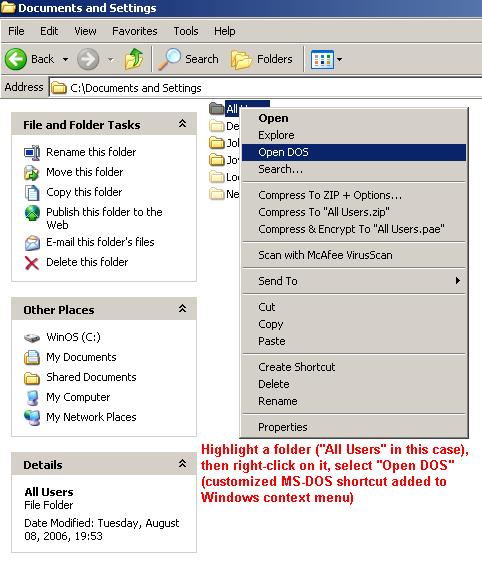
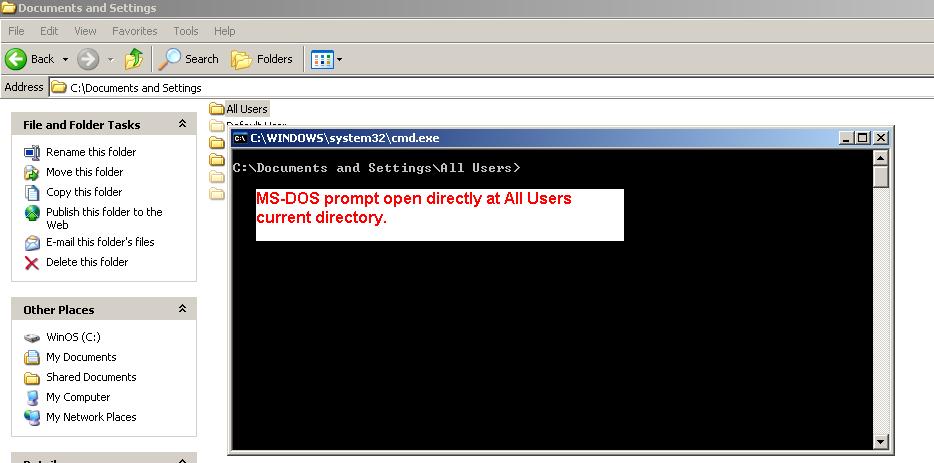
The fastest and easiest way to change path in MS-DOS or open MS-DOS prompt at indicated path dynamically is by adding tweaked MS-DOS shortcut to Windows context menu. Coupled with MS-DOS's filename auto-completion, it is easier to use various Windows command line utilities such as compiling program source code with command line compilers of C, .Net, Java, etc.

Enlarge picture...
Enlarge picture...
MS-DOS of Windows XP featured with filename auto-completion. Just press TAB key and the MS-DOS will automatically lists the file's name in the current directory. If initial character(s) is typed then only follow by pressing TAB key, it will only lists out those file's name with matching initial characters. MS-DOS of Windows 2000 able to auto complete filename by pressing TAB key too. Although, this feature is not turned on by default!

Turn on Windows 2000 MS-DOS's filename auto-completion feature:

  1. Click the Windows's Start button,
  2. Click the Run menu,
  3. Type regedit.exe in the Open field to call up Windows Registry Editor,
  4. Go to HKEY_CURRENT_USER\Software\Microsoft\Command Processor
  5. Set the value of CompletionChar to 9.
  6. Done. Open MS-DOS, or better known as Command Prompt, to test the result. Now, the MS-DOS should automatically lists the filename each time pressing the TAB key. If initial character(s) is typed then only follow by pressing TAB key, the MS-DOS should automatically lists only file's name that matches with the initial character(s) given. Note, pressing SHIFT+TAB will tell the MS-DOS listing backward.
Add tweaked MS-DOS shortcut to Windows context menu:

Enlarge picture...
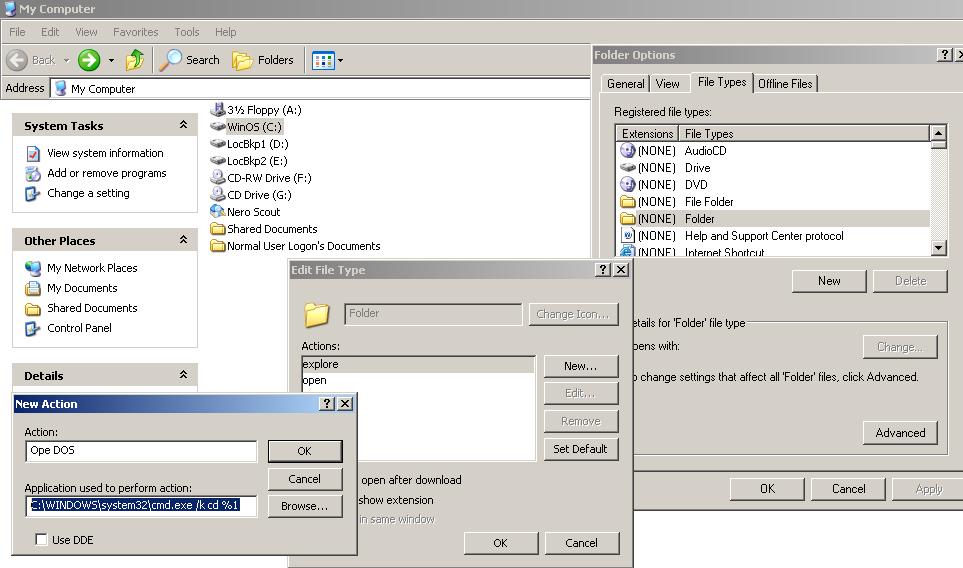
  1. Open My Computer or Windows Explorer,
  2. Click the Tools menu,
  3. Select Folder Options,
  4. Click on File Types tab,
  5. Search for "Folder" file type and highlight it,
  6. Click the Advanced button,
  7. Click the New button,
  8. Type a meaningful name, say Open DOS, in the Action field,
  9. Type C:\WINNT\system32\CMD.EXE /k cd %1 in the Application Used To Perform Action field below the Action field,
  10. Click OK button all the way to complete the procedures.
  11. To test the result, right click on any folder in local or network drives (not network folders which are not mapped as network drive). The Windows context menu should has new command shortcut named as Open Dos (the name given in previous step). Click on the Open DOS, the MS-DOS windows (titled as Command Prompt) opened up with the DOS current directory as the folder being right-clicked!